





If you are planning to make the switch to Apple Mail application after using Microsoft Outlook for Mac on your computer, then getting access to your email history becomes one of your priorities. Your emails, contacts, calendars, and tasks get stored in the Outlook for Mac application by saving them into a proprietary archive format, which is known as an OLM file.Unfortunately, Apple Mail does not have any support for reading and opening OLM files, because the OLM file format is a proprietary database of Microsoft and thus cannot be directly opened in Apple Mail. The best way out would be to convert the OLM file into EML files (standard, open format), which can then be imported into Apple Mail. This article explains how to open Mac Outlook OLM files in Apple Mail with the help of EML files.
Why Convert OLM to EML for Apple Mail?
Converting your OLM database to individual EML files provides you a number of advantages when you move to Apple Mail:
-
Native Apple Mail Compatibility: The EML format is the native format for email messages in the macOS environment. Apple Mail opens and previews .eml files without any effort.
-
Access to Files: In contrast to a large file consisting of one big database (of 50 GB), individual EML files give you an option to sort out, find, and share emails separately.
-
Preservation of Email Headers: When you convert your OLM database to EML, all metadata like To, From, CC, BCC, Timestamps, Subject Lines, IP routing info is kept safe.
-
Attachments: In case of correct conversion, you preserve your attachments (documents, images, PDFs, spreadsheet files, ZIP files).
The Challenge of Manual OLM to EML Export
Most people try to manually drag and drop emails out of Outlook for Mac in an attempt to create an email backup in the form of an .eml or .emlx file.However, this drag-and-drop approach becomes ineffective when it comes to backing up a whole mailbox because of the following reasons:
-
App Freeze/Crash: Dragging a large amount of emails will result in freezing and even crashing the app during the process.
-
Loss of Folders Structure: When you drag emails out of the program, they lose their folder structure and become placed in a random order in one desktop folder.
-
Unusable .olm File: You won’t be able to drag emails out of a standalone .olm file if you don't have an active Microsoft 365 subscription or Outlook for Mac installed on your Mac.
Open Mac Outlook OLM Files in Apple Mail using MacMister OLM Converter Tool
To open OLM files in Apple Mail smoothly without relying on Outlook or risking data loss, using a specialized tool like MacMister's Mac OLM Converter Tool is the recommended approach.
Developed natively for macOS, the utility parses OLM archive structures, extracts every email alongside its MIME components, and converts the data into standard EML files ready for immediate import into Apple Mail.
Key Features of MacMster OLM Converter Tool
- The software scans the internal structure of the OLM file, preserving embedded graphics, hyperlinks, rich text formatting, and all attached files without alteration
- To avoid organizational chaos after migration, MacMister OLM Converter mirrors the exact folder hierarchy of your original Outlook profile. Your Inbox, Sent Items, Drafts, and custom subfolders are organized identically as EML directories on your drive.
- Engineered specifically for Mac OS X and modern macOS versions, the utility runs natively on both Apple Silicon (M1/M2/M3/M4 chips) and Intel-based Macs.
- The tool includes several file-naming templates to auto-organize output EML files by Subject, Date, Sender, or Auto-Increment ID.
- Whether you have a single OLM file or a directory containing multiple legacy backups, the application offers flexible file-loading options:
-
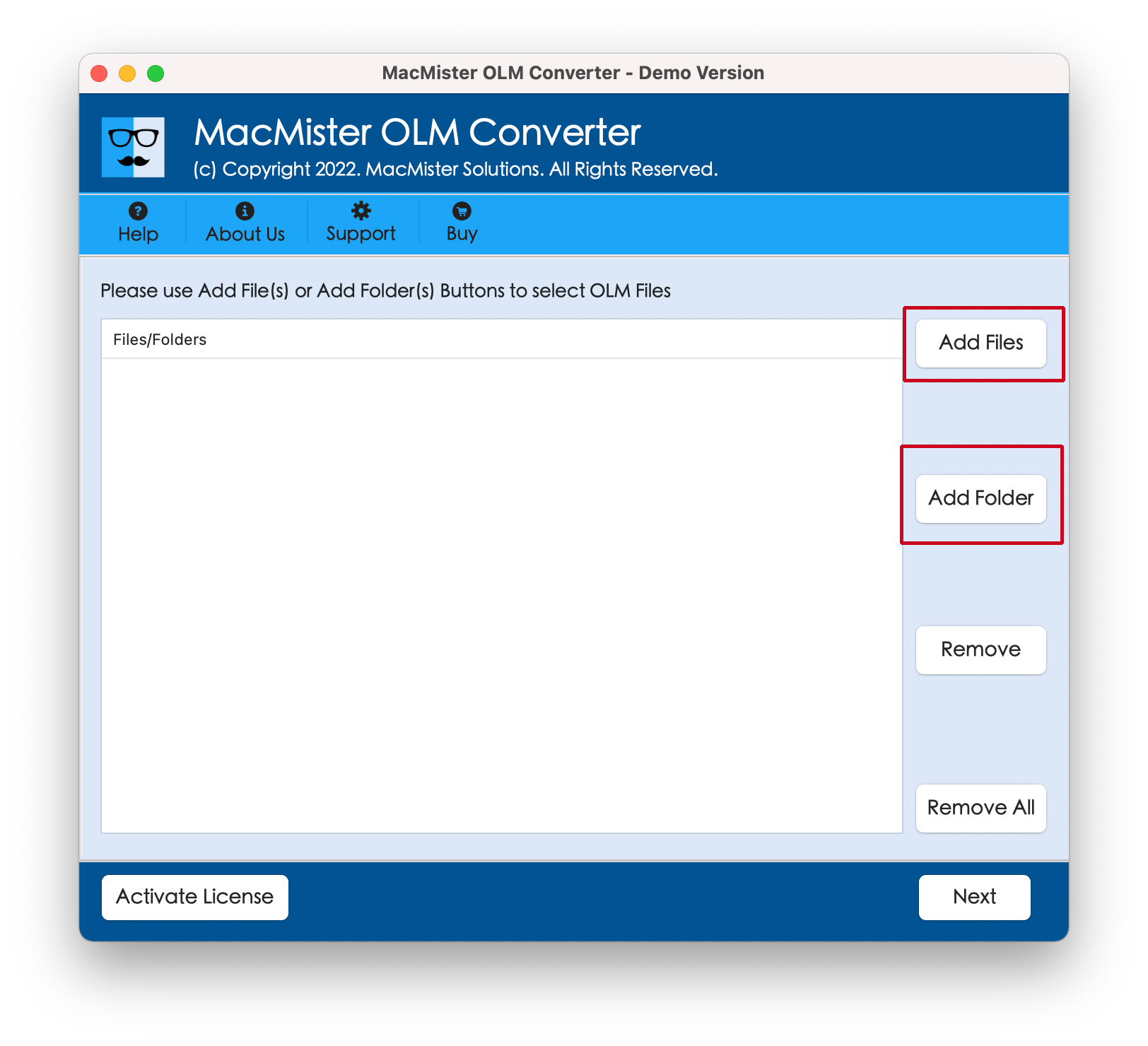
- Add File(s): Pick specific .olm files manually.
- Add Folder: Upload an entire folder containing multiple OLM archives for batch processing.
-
Step-by-Step: Convert OLM to EML and Open in Apple Mail
Phase 1: Convert OLM Files to EML Format
Step 1. Download and install MacMister OLM Converter Tool on your Mac. Open the application from your Applications folder.
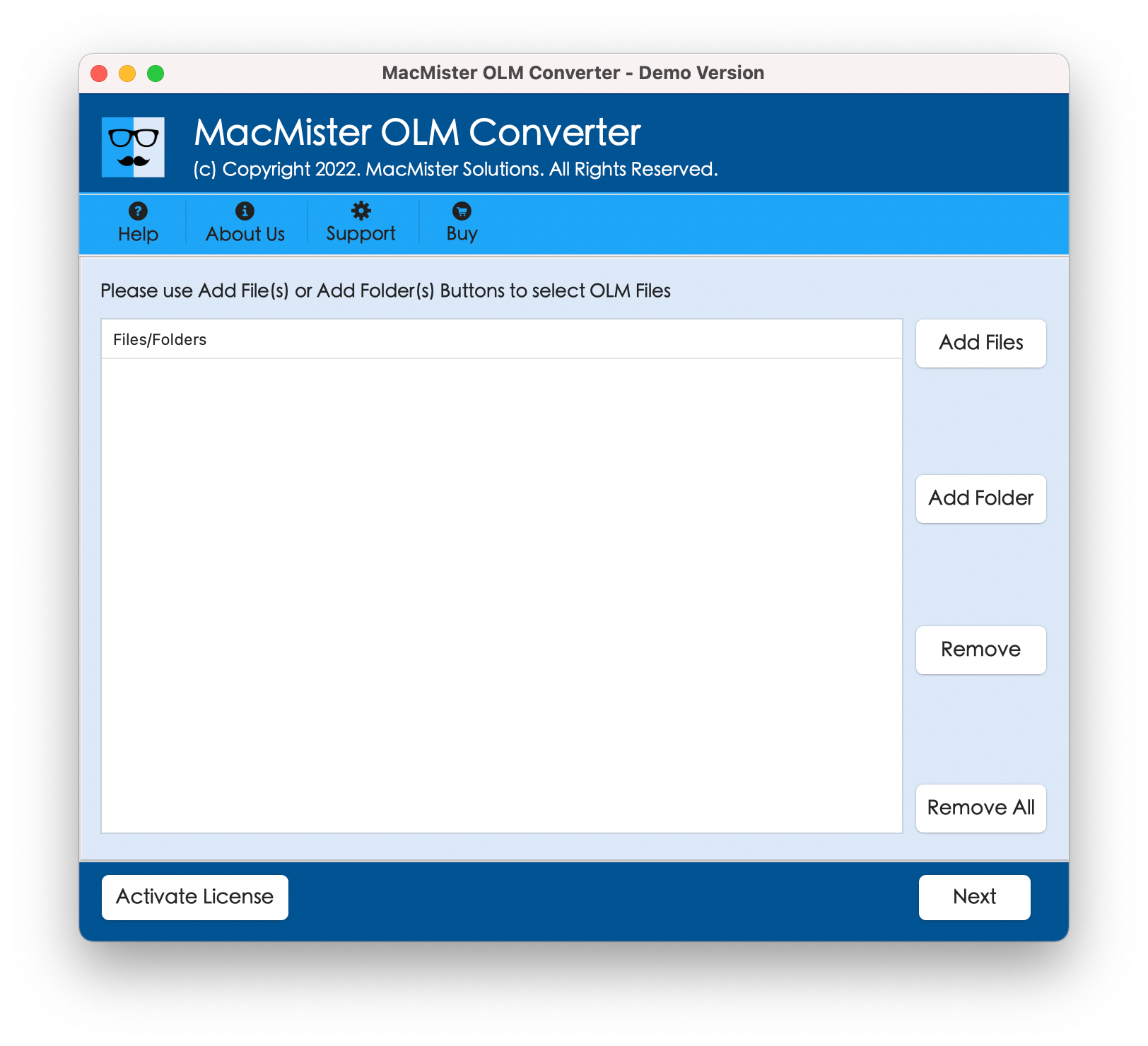
Step 2. Click Add File(s) to load individual .olm archives, or Add Folder to select a folder containing multiple OLM files.
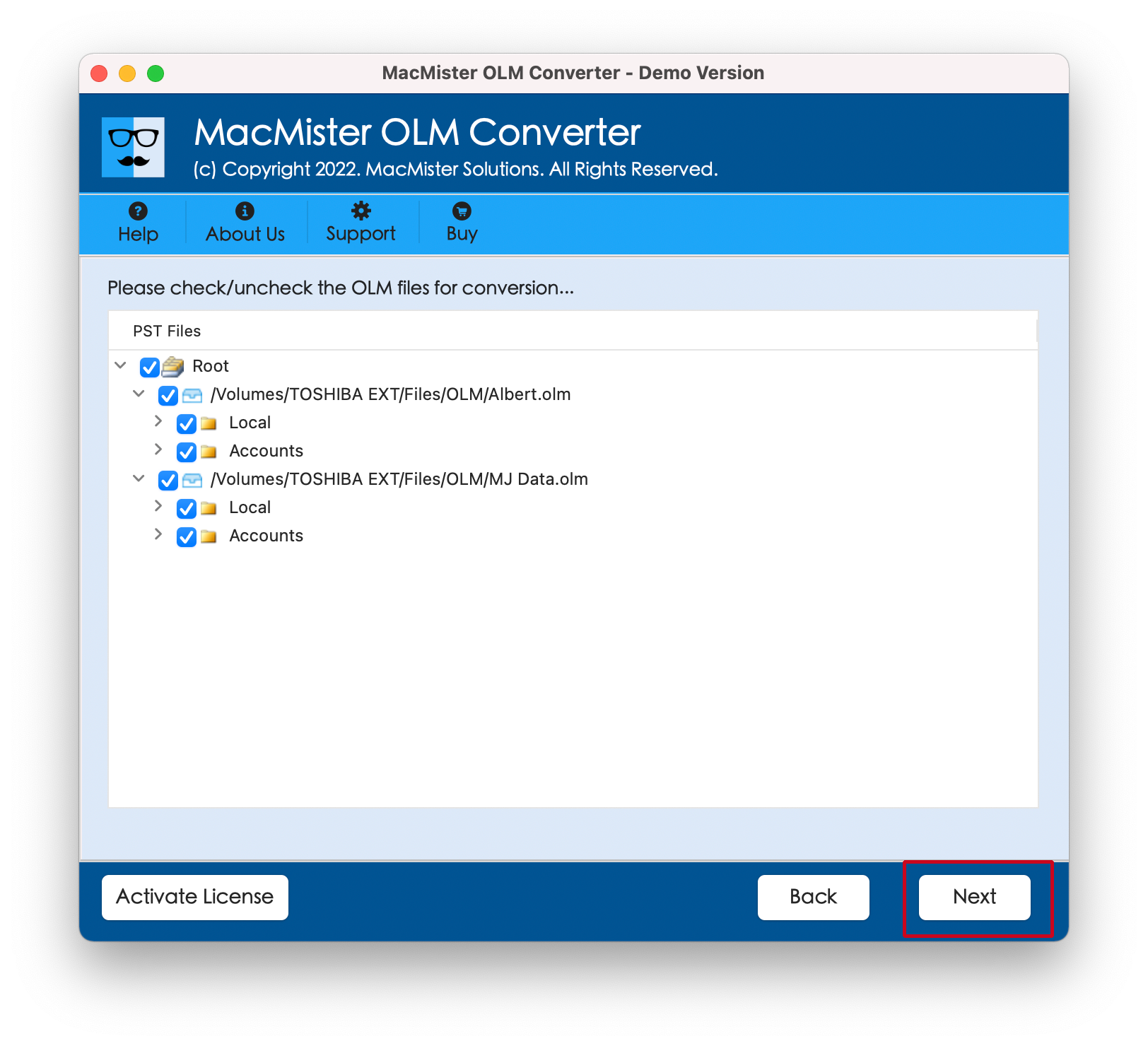
Step 3. The utility displays the directory tree of your OLM archive. Check or uncheck specific folders to filter what you want to extract.
Step 4. From the drop-down menu of available output saving options, select EML.
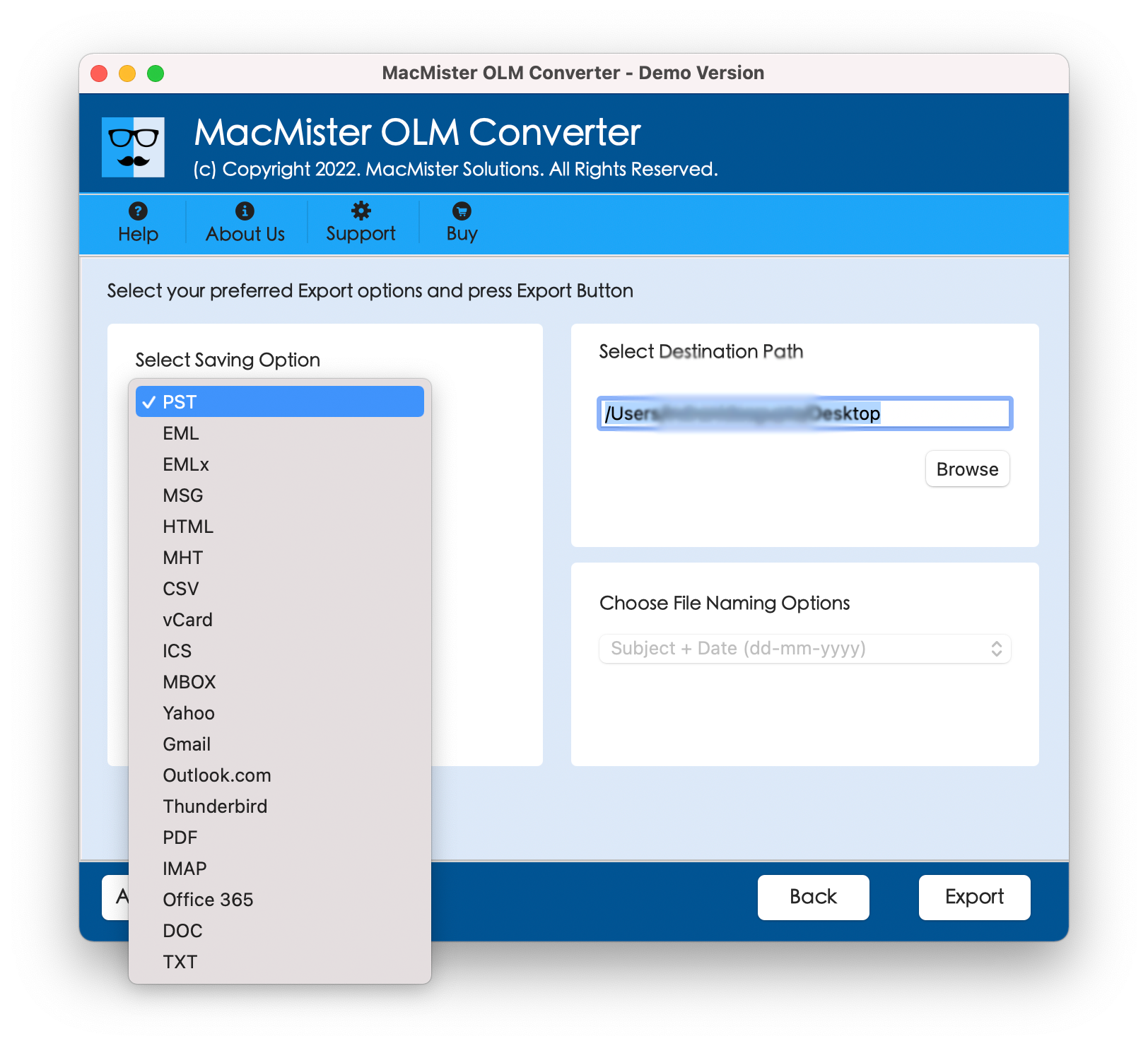
Step 5. Choose your preferred file-naming convention and click Browse to pick a destination folder on your Mac hard drive.
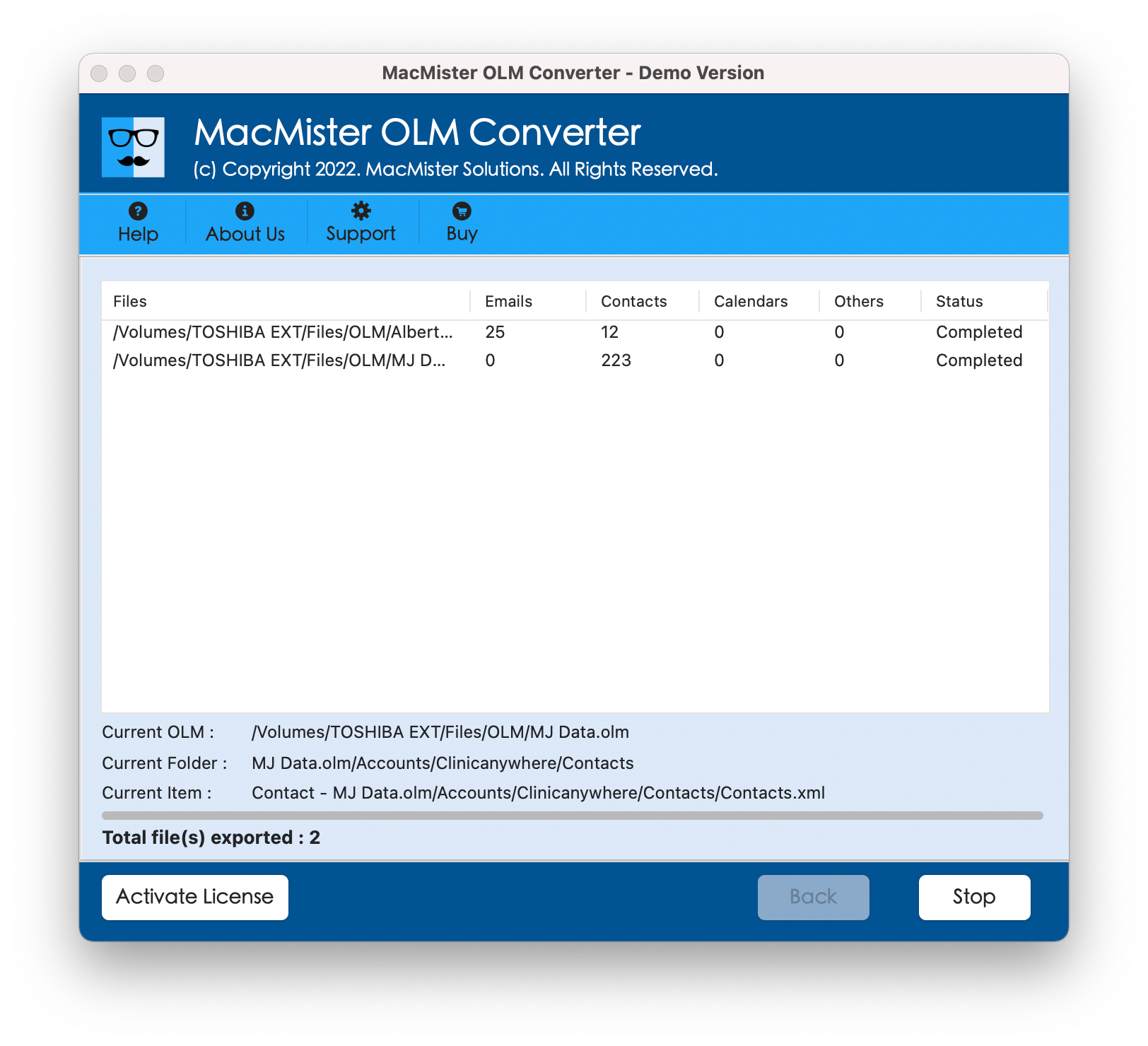
Step 6. Click the Export button to begin the conversion. A live status bar tracks real-time progress. Once finished, a completion notification will appear.
Phase 2: Import Converted EML Files into Apple Mail
Once your EML files are saved on your Mac, opening them in Apple Mail is straightforward using either of these two simple methods:
Method A: Direct Drag-and-Drop (Recommended)
- Launch Apple Mail on your Mac.
- In the left sidebar, create a new mailbox folder (e.g., right-click On My Mac and select New Mailbox, then name it "Imported Outlook").
- Open the destination folder containing your converted .eml files in Finder.
- Select the .eml files and drag them directly into your newly created folder in Apple Mail. All messages, complete with attachments and headers, will index into Apple Mail.
Method B: Double-Click Preview
- Navigate to the folder containing your converted .eml files in Finder.
- Double-click any individual .eml file.
- The email will immediately open in a native Apple Mail viewer window, allowing you to read, reply, forward, or save the message into your active Apple Mail folders.
Conclusion
Migration of emails from Microsoft Outlook for Mac to Apple Mail is possible without using any technical tricks and without losing any attachments. Even though Apple Mail is not able to open .olm file extensions, their conversion into the common .eml extension will solve this problem.
Using MacMister OLM Converter Tool ensures that your attachments, folder hierarchies, and metadata remain intact throughout the process, allowing you to access all your Outlook emails within Apple Mail on macOS.